
Traffic lights
Wira Bandar PC is a fork of OpenTTD: OpenTTD's code with changes, free software under the GNU GPL v2. About and credits
Traffic lights control a road junction: one road gets green while the other waits. Because road vehicles give way at junctions, a busy junction without lights lets its two roads through one vehicle at a time. Lights let a whole queue through on green, which keeps buses on time where lines cross.
Build traffic lights
Section titled “Build traffic lights”- On the main toolbar, click Build roads (the road icon; tooltip Build road infrastructure) and choose Road construction. Shift+F8 opens the road toolbar too.
- In the Road Construction toolbar, click the traffic light button (a traffic light; tooltip Build traffic lights at a road junction, or click lights to change their timings), or press S.
- Click a junction: a T-junction or a crossroads. The lights go up at once and the cost is paid like any construction, about as much as a road depot. Hold Shift while you click to see the cost without building.
- To take lights away, Ctrl+click them with the same tool, or turn on the build/remove toggle (tooltip Toggle build/remove for road construction, R) and click them.
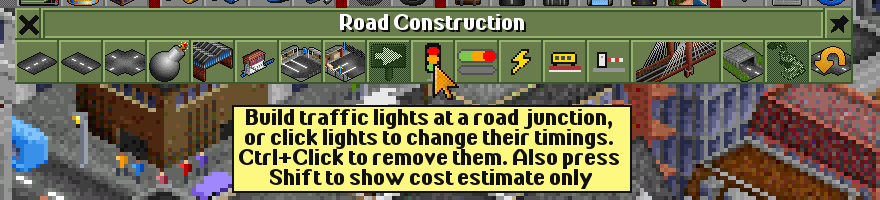
Lights go on junctions of plain road, with three or four road pieces: on town roads and on your own roads, not on another company’s roads. Anywhere else the game says Can’t build traffic lights here… and why, for example traffic lights need a road junction. New lights start with green for the road with the most branches; on a T-junction that’s the main road.
Change the timings
Section titled “Change the timings”- With the traffic light tool still selected, click a junction that has lights. The Traffic lights in … window opens, named after the nearest town.
- Click Smart or Fixed time.
- Use the arrow buttons in front of each line to make a time shorter or longer, half a second a click. Ctrl+click for a step ten times as big.
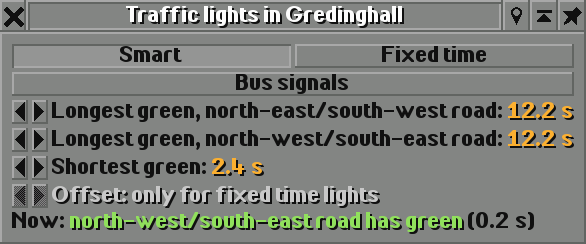
The two roads are named by compass direction. On screen, the north-east/south-west road runs from the top right to the bottom left, the north-west/south-east road from the top left to the bottom right.
- Smart (the default): Stay green while traffic keeps coming, and switch when vehicles wait on the other road. Longest green caps how long one road keeps green while vehicles wait on the other. Shortest green is the least it gets before the lights may switch.
- Fixed time: Switch on a fixed cycle, whether vehicles wait or not. Each road gets its Green time, and the cycle is both greens plus two all-red breaks. Offset says where these lights are in their cycle: new fixed lights show Offset: 0.0 s into a cycle of 25.9 s. All fixed lights with the same cycle length stay in step, also after you save and load, so neighbouring lights with suitable offsets make a green wave.
- Now: shows what the lights do this moment: which road has green and for how long, amber, or all red while the junction clears.
- Bus signals give buses a head start at these lights: see bus priority.
- The location button in the title bar centres the main view on the lights; Ctrl+click opens a new viewport there.
Times can be set from half a second to 40 seconds. They are seconds at normal game speed: a game day is about two seconds. You can change your own company’s lights, and public lights: those of a company that went bankrupt, and lights placed in the scenario editor.
How it works
Section titled “How it works”- Red means stop for every road vehicle, trams included. Vehicles never drive through a red light.
- Between two greens, all lights are red for about 0.8 seconds so the junction can clear. The road that had green sees amber for the first part of that.
- Smart lights switch when someone waits on the other road, the green road has had its shortest green, and either its traffic stopped coming (no vehicle for about 1.2 seconds) or its longest green is used up.
- Smart lights also see town traffic. On a busy road (town traffic level 1 or more) somebody is always waiting, so the lights switch at the first gap in the green road’s traffic. On a quiet town road, a car turns up at the red light once the other road has had its longest green. Out of town only real vehicles count.
- With give way on, a vehicle with green still waits while a vehicle from the crossing road is on the junction, and stays out when the road it leaves by is backed up.
- Town traffic flows better through lights: a junction can take 75% of the traffic of a plain road before it congests, one with lights 85% (see town traffic).
- Routing: the road pathfinder counts a junction with lights as half a tile longer, and a junction where vehicles are held up as two tiles longer for each of them. So vehicles barely avoid lights, but they do drive around jams where there is another way.
- Land Area Information on a junction says Road junction with traffic lights and the Traffic lights owner.
- When the road is changed so the tile is no longer a junction, the lights go. A bankrupt company’s lights keep working and become public; when a company is bought, its lights go to the buyer.
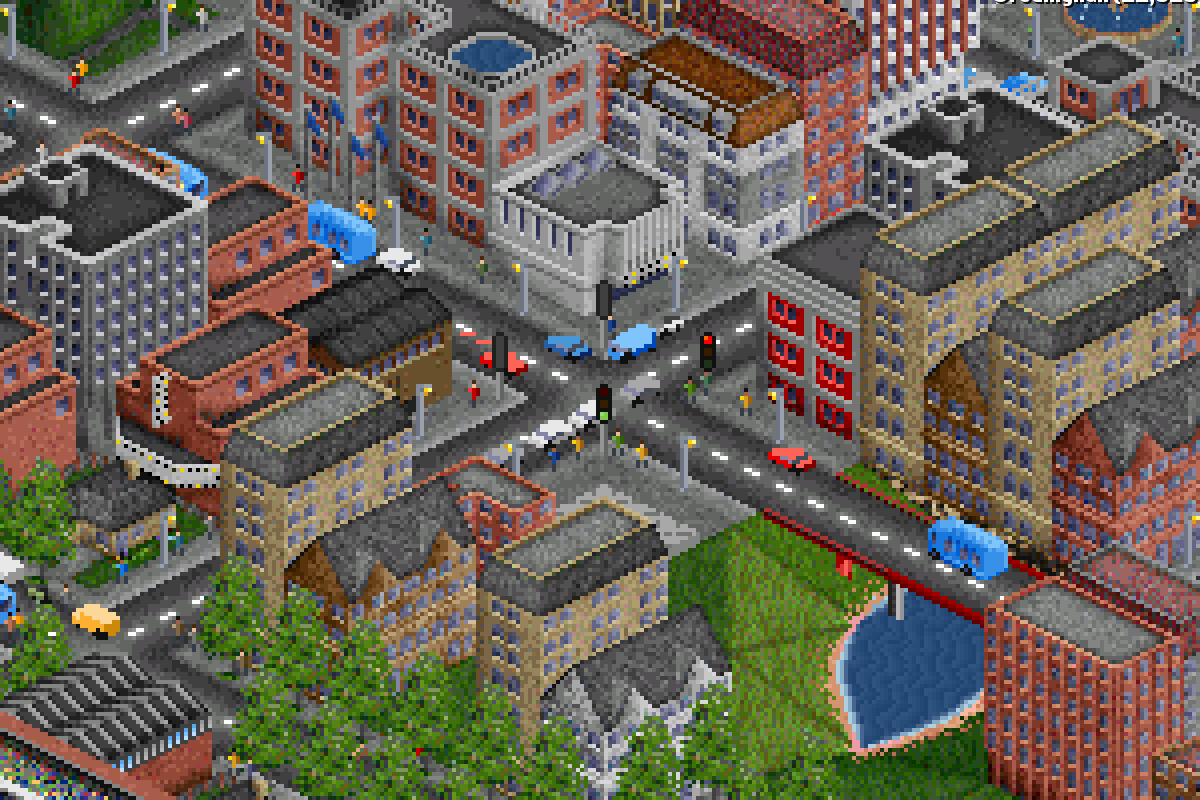
- Light the busiest junctions first: where bus lines cross, or where the traffic map shows orange or red. In a test town with two crossing bus lines, lights on the three busiest junctions paid off, while lights on every junction cost a little.
- If one road is much busier than the other, give it a longer Longest green.
- Timings matter a lot. After a change, turn on the traffic overlay (O in the road toolbar) and watch for a few game days.
- On bus routes, add Bus signals: buses get green a moment before the other traffic.
Switching it off
Section titled “Switching it off”There is nothing to switch off: lights only exist where you build them, and Ctrl+click with the traffic light tool removes them. Without lights, vehicles take turns at junctions as described on giving way.
For experts, the pathfinder’s view of lights is a number in openttd.cfg:
openttd.cfg[pf] yapf.road_traffic_light_penalty
Not in the settings window: set it in Documents\Wira Bandar\openttd.cfg while the game is closed (for new games), or in a running game with the console command setting pf.yapf.road_traffic_light_penalty <value>. Default: 50. See the settings reference.
How much longer the road pathfinder counts a junction with traffic lights. The default, 50, is half a tile (100 is one tile). Higher values make road vehicles avoid lights more; in tests a much bigger value made buses avoid the lit junctions and did worse.
See also
Section titled “See also”- Giving way at junctions: why unlit junctions slow traffic down
- The traffic map and overlay: find the junctions that hold traffic up
- Bus priority: bus signals at traffic lights, bus lanes
- Town traffic and street life: the traffic the lights also serve
Wira Bandar PC is a fork of OpenTTD. It is OpenTTD's code with changes, not a game made from scratch. OpenTTD is made by the OpenTTD team and contributors and is free software under theGNU General Public License version 2; Wira Bandar PC keeps that licence, OpenTTD's credits and copyright notices.Source code ·OpenTTD ·About and credits
Wira Bandar PC is not made or supported by the OpenTTD team, so please don't report its bugs to OpenTTD (see FAQ and troubleshooting).