
Lines
Wira Bandar PC is a fork of OpenTTD: OpenTTD's code with changes, free software under the GNU GPL v2. About and credits
In Wira Bandar PC the vehicles that share one order list form a line, like a bus route in a real city. You can give it a number such as 101 and a name, see how many people ride it and how long they wait, and set how often its vehicles should leave so they don’t bunch. Stations get departure boards, and every line has its own map.
Make a line
Section titled “Make a line”A line is simply the vehicles that share their orders; a single vehicle with its own orders is a line too.
- Give one vehicle its orders: in its vehicle window click the orders button (tooltip Show vehicle’s orders. Ctrl+Click to show vehicle’s timetable), then Go To and a stop, for each stop.
- Add vehicles that share these orders: in the vehicle’s window, Ctrl+click the clone button (tooltip Buy a copy of the road vehicle. Ctrl+Click to share orders…). A vehicle you already have joins the line when, in its orders window, you click Go To and Ctrl+click a vehicle of the line.
- On the main toolbar, click Road vehicles (the lorry icon; tooltip Open list of company’s road vehicles). At the top of the list, set Group by to Lines (shared orders).
- Click a line to open its line window. Click Number and type up to 8 characters (101, T420 or CAT), click Name for a name of up to 32 characters, and pick a Colour (Automatic picks one of the 16 for you).
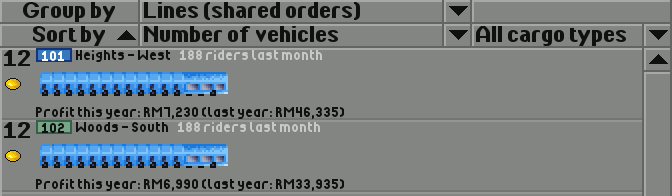
The number shows as a badge in the line’s colour wherever the line appears: vehicle lists, departure boards, line maps and town transit windows. In the grouped list, Shift+click a line to see its vehicles instead. A vehicle’s Timetable window has a Line button that opens its line window too.
The line window
Section titled “The line window”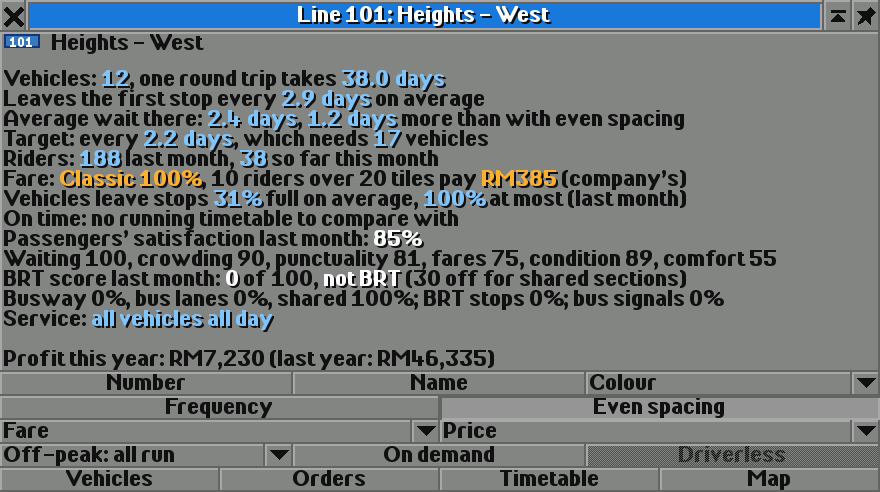
From the top, the window shows:
- Vehicles and the time of one round trip, measured from the line’s trips or taken from its timetable.
- How often vehicles leave the first stop (the first station in the orders), over the last 16 departures.
- The average wait there for someone who turns up at a random time, and how much longer that is than with even spacing, when the wait is half the gap. Singapore calls this extra time the excess wait time.
- The target frequency and the vehicles it needs: the round trip divided by the target, rounded up.
- Riders: passengers who got off the line’s vehicles (to change lines too), last month and so far this month.
- The fare (see fares), or the line’s contract with a town (see transit authorities).
- How full vehicles leave their stops last month: on average and at most.
- On time: the share of timetabled departures from the first stop between a day early and three days late. It needs a running timetable.
- Passengers’ satisfaction and its six parts (see passenger satisfaction).
- For bus lines the BRT score (see busways and BRT), the Service line of the city clock (see rush hours and on-demand lines), for trains whether they run without drivers (see metro and rail), and the profit of all its vehicles, this year and last.
Times show with tenths of a day (or in seconds or ticks, if your timetables show those).
Keep vehicles evenly spaced
Section titled “Keep vehicles evenly spaced”Buses that start together, or get held up, end up running in a bunch: one full bus followed by empty ones, and long waits in between. A target frequency with even spacing breaks the bunch up.
- In the line window, click Frequency and type how often vehicles should leave the first stop (Leave the first stop every how many days? (0 for no target)). The window shows, for example, Target: every 7.0 days, which needs 4 vehicles.
- Click Even spacing. Vehicles now wait at the first stop until the target time since the last departure has passed, loading passengers while they wait.
Pick a target a little longer than the round trip divided by the number of vehicles: then every vehicle leaves the same time after the one before. A shorter target only keeps them at least that far apart. The time vehicles wait at the first stop counts in the round trip, so the number the target needs creeps up: if the vehicles drove the round trip in less than vehicles × target before, you still have enough. In a test with two town lines of 12 buses, even spacing brought the average wait down to almost exactly half the gap. On-demand lines don’t hold their vehicles.
Departure boards
Section titled “Departure boards”- Click a station, or its name sign, to open the station window.
- In the bottom row, click Departures (tooltip Show the next departures from this station, with their lines).
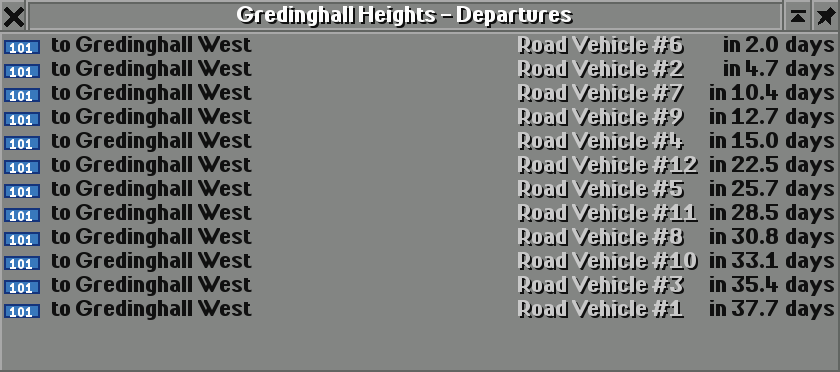
The board lists the next 14 vehicles to leave, soonest first: the line badge, the next two stops (to …, then …, or terminates here), the vehicle, and now or in 3.4 days. Click a row to show the vehicle; Ctrl+click it for its line. The board refreshes every second.
The times come from where each vehicle is in its orders and the timetabled or estimated time of each order; at the first stop of a line with even spacing, vehicles are listed one target apart, as they will be held. Orders that only go via the station don’t count. For orders without a timetable, one slow trip (a breakdown, a depot visit, a jam) moves the estimate only part of the way: half with one or two vehicles on the line, an eighth with eight or more. So the boards, and the vehicles a line needs, stay steady.
The line map
Section titled “The line map”- In the line window, click Map (bottom row, after Timetable).
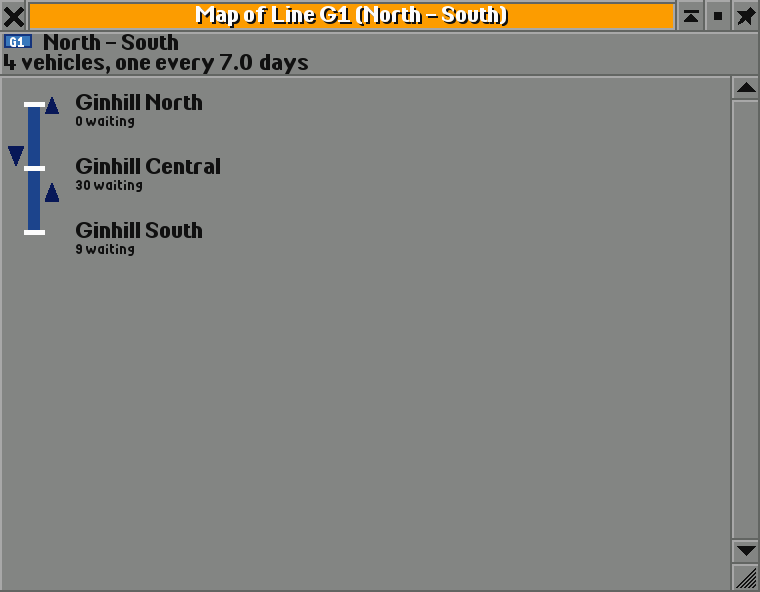
The map shows the line’s stops from top to bottom in its colour, like the map above the doors of a metro train:
- A line that goes out and comes back the same way (stops A B C D C B) shows each stop once. Any other line is a loop that ends in a dashed stretch and Back to its first stop.
- Under each stop: the passengers waiting, and at railway stations how full the platforms are (see metro and rail).
- Where other passenger lines stop too, the stop gets a ring and those lines’ badges: that is where to change.
- Arrows are the vehicles: on the left on their way down, on the right on their way back, placed by how far into each trip they are. Click a stop to scroll to it (Ctrl+click opens it); click a vehicle to open it (Ctrl+click for its line).
The network map
Section titled “The network map”- On the main toolbar, click Map (the map icon; tooltip Open map, extra viewport, cargo flow or list of signs) and choose Map of world, or press F4.
- Click the lines button (coloured lines with white dots; tooltip Show your lines on the map in their colours, from stop to stop).
Each of your lines is drawn from stop to stop in its colour, stops are white squares, and lines that share a stretch run side by side. When you spectate, you see every company’s lines.
- Number every line: badges make busy departure boards and vehicle lists easy to read.
- Watch the excess wait. When it grows, set a target and turn on even spacing.
- If vehicles leave stops nearly full on average, add vehicles or bigger buses; nearly empty, fewer or smaller ones will do.
- A new line fills its window after its first trips and its first full month.
Switching it off
Section titled “Switching it off”There is nothing to switch off. Lines are the shared orders you already use; a line without a number, target or even spacing runs just as in OpenTTD.
See also
Section titled “See also”- Your first city bus network: a line built step by step
- Fares: a line’s own fare
- Passenger satisfaction: what riders think of a line
- Rush hours and on-demand lines: off-peak service and on-demand lines
- Busways and BRT: the BRT score
- Metro and rail: platforms on the line map, driverless trains
- Town transit authorities: contracts for your lines
Wira Bandar PC is a fork of OpenTTD. It is OpenTTD's code with changes, not a game made from scratch. OpenTTD is made by the OpenTTD team and contributors and is free software under theGNU General Public License version 2; Wira Bandar PC keeps that licence, OpenTTD's credits and copyright notices.Source code ·OpenTTD ·About and credits
Wira Bandar PC is not made or supported by the OpenTTD team, so please don't report its bugs to OpenTTD (see FAQ and troubleshooting).