The traffic map and overlay
Wira Bandar PC is a fork of OpenTTD: OpenTTD's code with changes, free software under the GNU GPL v2. About and credits
Two views show how road traffic is doing: the Road traffic view of the Map window for the whole map, and the traffic overlay that colours the roads in the main view. Both use the same colours, from green (flowing) to red (jammed). Use them to find the junctions that need traffic lights and the streets where buses get stuck in town traffic.
Open the Road traffic map
Section titled “Open the Road traffic map”- On the main toolbar, click Map (the map icon; tooltip Open map, extra viewport, cargo flow or list of signs) and choose Map of world, or press F4.
- In the Map window, click the road traffic button (a bar in red, yellow and green; tooltip Show road traffic on map: where it flows and where vehicles are held up). The title changes to Map - Road traffic.
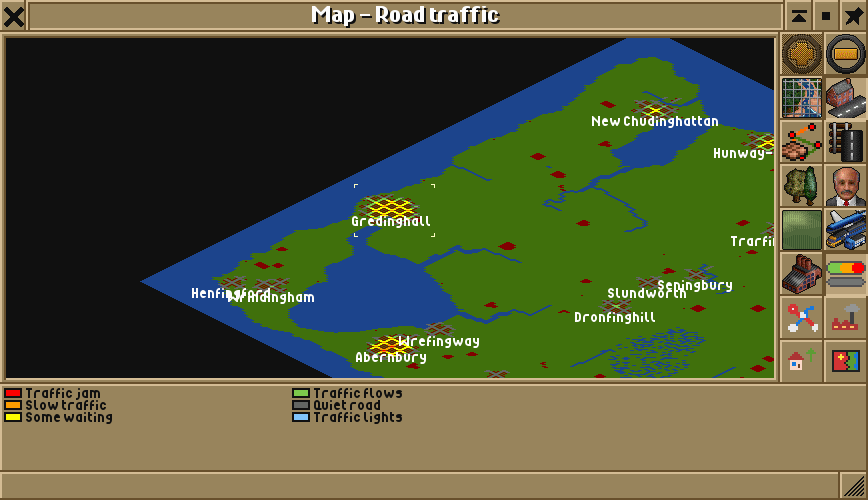
| Colour | Legend | What it means |
|---|---|---|
| Red | Traffic jam | Vehicles stand still most of the time; or town traffic level 6 or 7 |
| Orange | Slow traffic | Vehicles wait about half the time; or town traffic level 4 or 5 |
| Yellow | Some waiting | Vehicles have to wait now and then; or town traffic level 2 or 3 |
| Green | Traffic flows | Vehicles drive on freely; or town traffic level 1 |
| Dark grey | Quiet road | Hardly any traffic |
| Light blue | Traffic lights | A junction with lights where nobody is held up |
Road stops, bridges and tunnels count as road. Railways look as in the Routes view, and everything else is plain land.
Show traffic in the main view
Section titled “Show traffic in the main view”- Open the road toolbar: on the main toolbar, click Build roads (the road icon; tooltip Build road infrastructure) and choose Road construction.
- Click the traffic overlay button (the same red, yellow and green bar, next to the traffic light button), or press O.
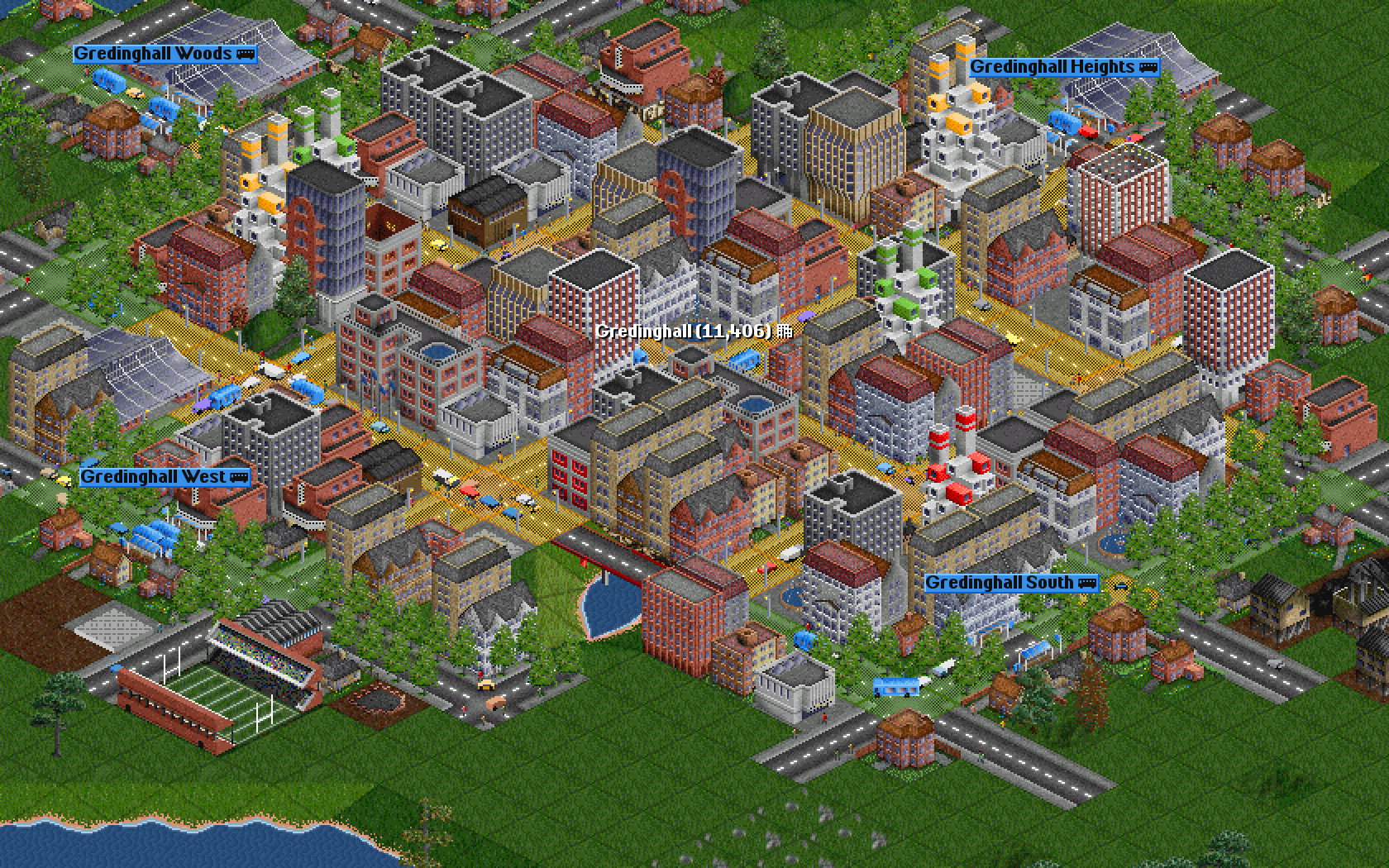
- The roads in view are tinted by their traffic; quiet roads keep their normal look. Click the button again, or press O, to hide the colours. Closing the road toolbar hides them too.
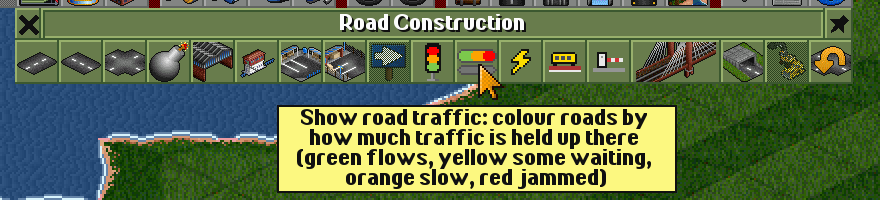
Because the overlay is a switch and not a tool, you can keep it on while you build: place traffic lights or paint bus lanes and watch the colours change. It follows the traffic, redrawing every second.
What the colours mean
Section titled “What the colours mean”A road takes the worse of two colours:
- What road vehicles went through there lately. About four times a game day the game looks at every road vehicle on the road. One that waits, or crawls at less than a quarter of its top speed, counts as held up; one driving on counts as flowing. Vehicles loading at a stop, in a depot, stopped or broken down don’t count. Older observations fade away, so the colours show the last few days.
- The town traffic on the road. Every road has a congestion level from 0 to 7 (see town traffic): 1 shows green, 2 and 3 yellow, 4 and 5 orange, 6 and 7 red. With the city clock on, that follows the time of day, busier in the rush hours.
So a red junction can mean that road vehicles queue there, or that town traffic is jammed. The Land Area Information of a road tile tells you its town traffic level.
The map and the overlay only show; they never change the game. The vehicle part isn’t saved, and in a network game every player’s computer collects its own. Right after loading a game, only town traffic shows until vehicles have driven for a while.
- An orange or red junction on a bus route is the first place for traffic lights. After building them, keep the overlay on for a few game days and compare.
- A light-blue junction on the map has lights and no queue; if it turns yellow or worse, look at its timings.
- Yellow and orange streets all over a town centre are usually town traffic. Carrying more of the town’s passengers takes cars off the road; bus lanes take your buses past them.
- Watch a town in the rush hours with the city clock on: that’s when its streets are busiest.
Switching it off
Section titled “Switching it off”There is nothing to switch off: the Road traffic view and the overlay only show when you choose them, and they don’t change the game.
See also
Section titled “See also”- Traffic lights
- Giving way at junctions
- Town traffic and street life
- Commuting: the Commuter traffic map in the Towns menu shows where commuters drive
- Bus priority
Wira Bandar PC is a fork of OpenTTD. It is OpenTTD's code with changes, not a game made from scratch. OpenTTD is made by the OpenTTD team and contributors and is free software under theGNU General Public License version 2; Wira Bandar PC keeps that licence, OpenTTD's credits and copyright notices.Source code ·OpenTTD ·About and credits
Wira Bandar PC is not made or supported by the OpenTTD team, so please don't report its bugs to OpenTTD (see FAQ and troubleshooting).