
Your first city bus network
Wira Bandar PC is a fork of OpenTTD: OpenTTD's code with changes, free software under the GNU GPL v2. About and credits
In this tutorial you build a bus line through a town: three stops, a depot and four buses. Then you turn the buses into a numbered line, stop them from running in a bunch, set fares, and read what the riders and the town think of it. Everything here works in any new game.
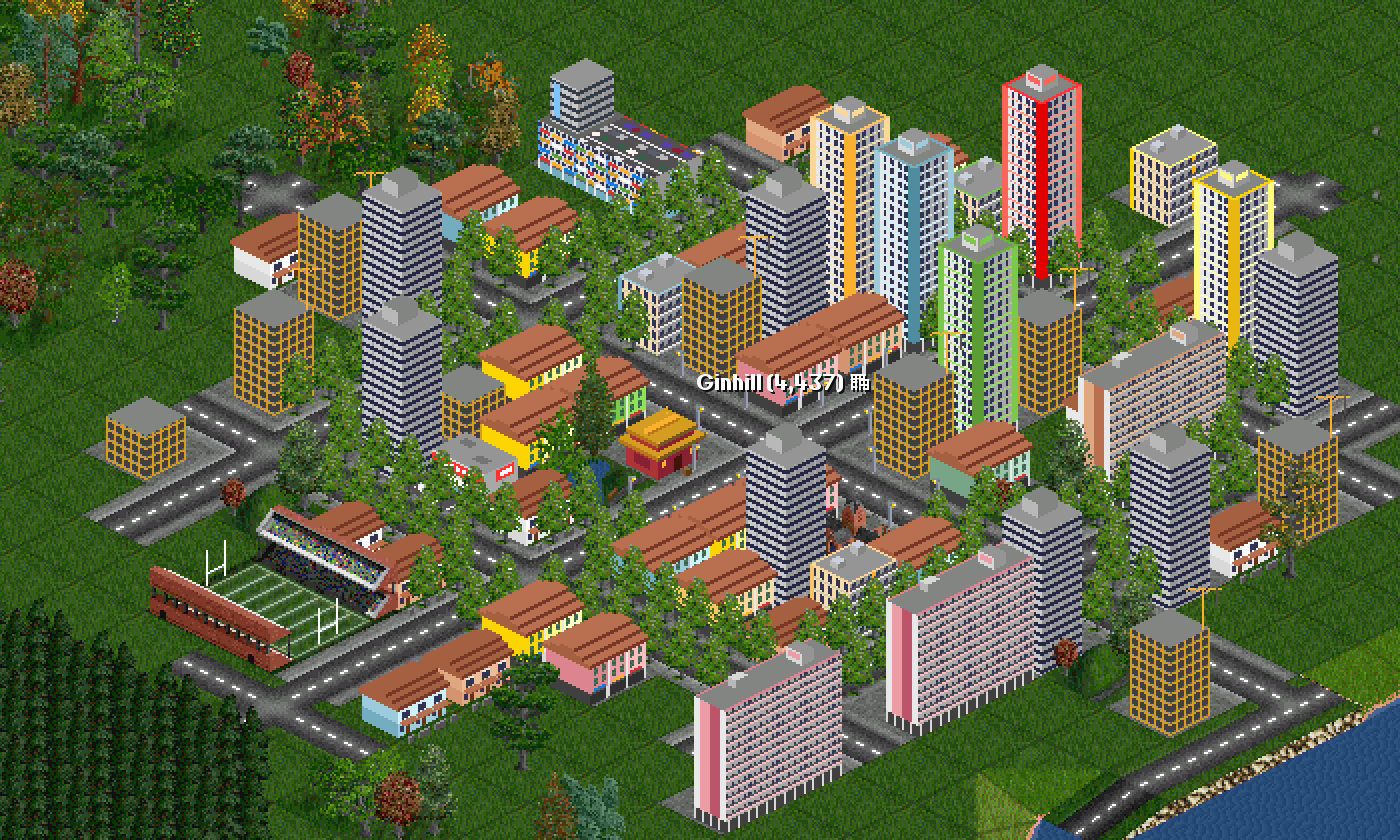
The screenshots come from a new game started in 2010 in the temperate climate, in a town called Ginhill of about 4,400 people. Your map, your town and its station names will be different; the windows are the same.
Before you start
Section titled “Before you start”- Start a new game (see your first game). Choose a start year of 2000 or later, so the first modern city buses, the Kenari City 12 used here among them, are on sale from the first day (see modern and electric buses).
- Optional: to see money in ringgit as in the screenshots, open Options and settings (the gear) → Game options → General and set Currency units to Malaysian Ringgit (MYR).
1. Pick a town
Section titled “1. Pick a town”- On the main toolbar, click Towns (the house icon; tooltip Open town directory or found town) and choose Town directory.
- Click a town with a few thousand people. The main view jumps to it. Towns from 1,500 people also have a transit authority, which you will meet at the end.
- Look for a main street that runs through the centre from one edge of the town to the other: that is your line.
2. Build three bus stops
Section titled “2. Build three bus stops”- On the main toolbar, click Build roads (the road icon; tooltip Build road infrastructure) and choose Road construction.
- In the Road Construction toolbar, click the bus station button (tooltip Build bus station. Ctrl+Click to select another station to join. Also press Shift to show cost estimate only). The Bus Station Orientation window opens.
- Click one of the two pictures on the right: drive-through stops, where the road runs straight through. Pick the one whose road runs the same way as your street. Buses stop on either side of a drive-through stop and drive on, and articulated buses can only use these.
- Click a straight piece of your street (not a junction) near one end of the town. A stop with shelters and a name sign appears.
- Click a straight piece near the centre, and one near the other end.
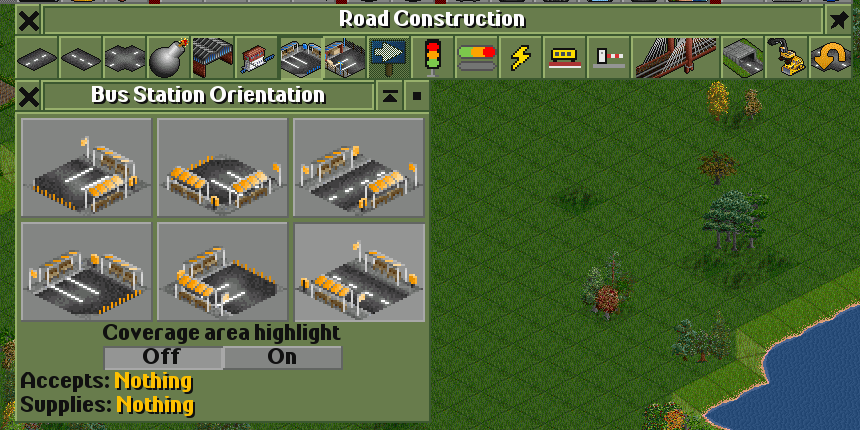
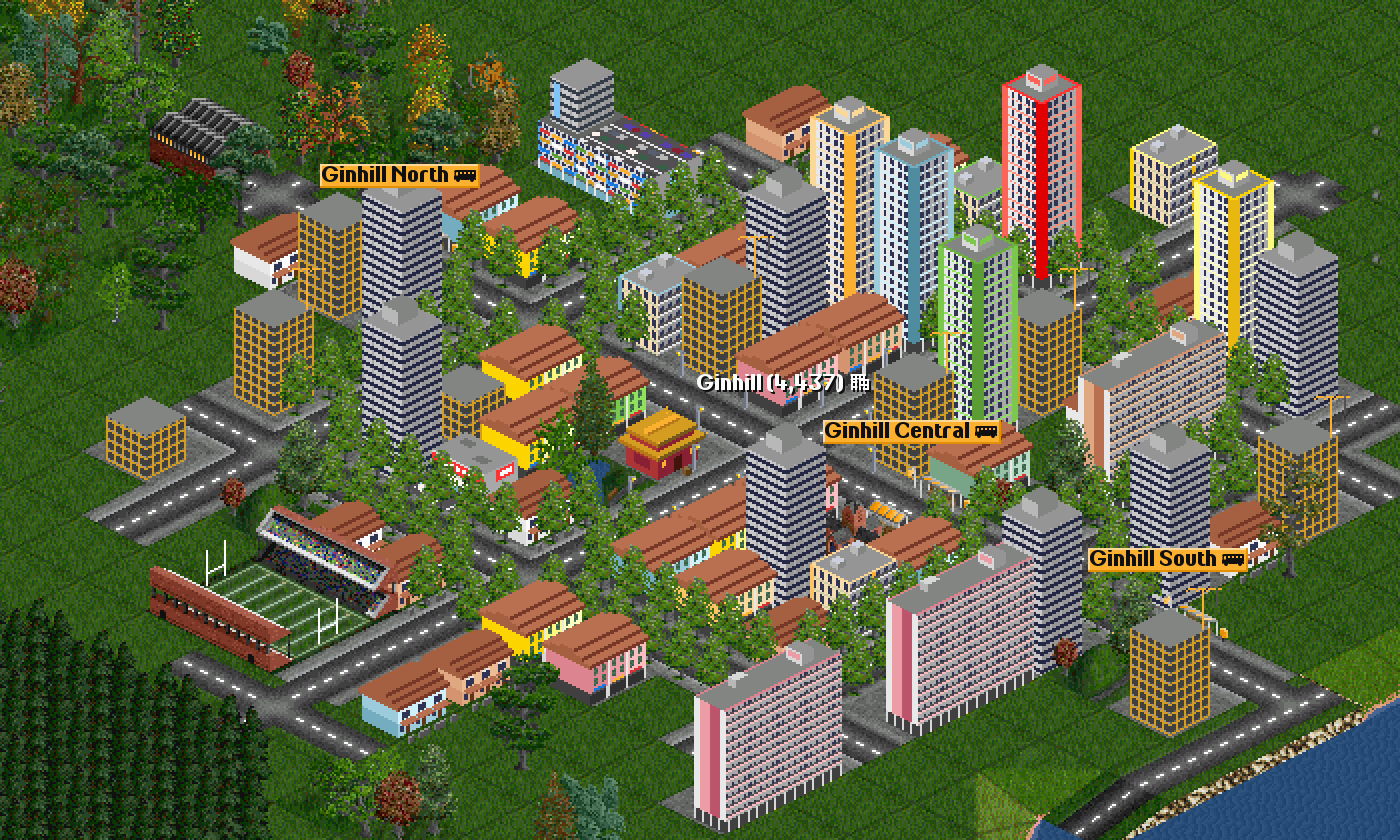
Stops 4 to 8 tiles apart are about right in a town: each bus stop collects passengers from the houses within 3 tiles around it.
The game names each new station after the town (here Ginhill, Ginhill Central and Ginhill South). To rename one, click its name sign to open the station window and click the pencil at the top left (tooltip Rename station or move sign). Here the first stop was renamed Ginhill North.
3. Build a depot
Section titled “3. Build a depot”- In the Road Construction toolbar, click the depot button (tooltip Build road vehicle depot (for buying and servicing vehicles). Also press Shift to show cost estimate only).
- In the Road Depot Orientation window, click the picture whose door faces the road you will build on.
- Click a free tile right next to the street, near one end of the line.
The depot is where you buy buses, and where they go for servicing. A depot near one end of the line saves them long empty trips (see depot yards).
4. Buy a bus
Section titled “4. Buy a bus”- Click the depot to open its depot window, and click New Vehicles.
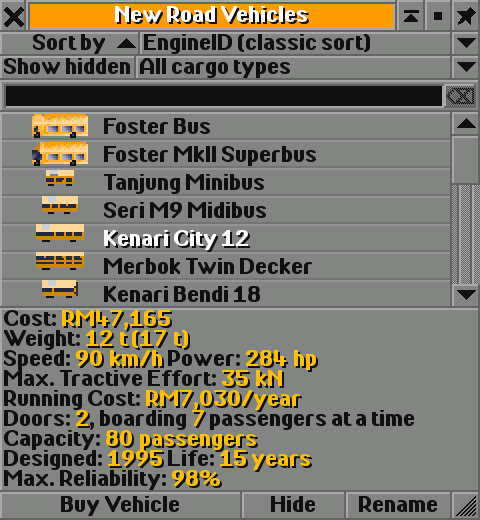
- In the New Road Vehicles window, click Kenari City 12: 80 passengers, two doors.
- Click Buy Vehicle. The bus appears in the depot, stopped, and its window opens.
5. Give it orders
Section titled “5. Give it orders”- In the bus’s window, click the orders button (the orange arrow in the column on the right; tooltip Show vehicle’s orders. Ctrl+Click to show vehicle’s timetable). Its orders window opens, empty.
- Click Go To, then click the stop at the first end of the line. The order 1: Go non-stop to Ginhill North appears, and Go To switches off again.
- Click Go To and then the centre stop.
- Click Go To and then the stop at the other end.
- Click Go To and then the centre stop once more, for the way back.
- Close the orders window.
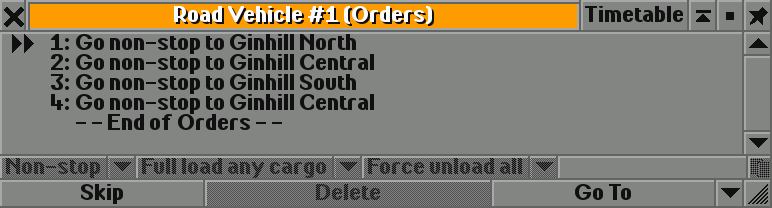
After the last order the bus goes back to the first one, so it shuttles North, Central, South, Central, North and so on.
6. Add three buses on the same line
Section titled “6. Add three buses on the same line”- In the bus’s window, hold Ctrl and click the clone button (the blue bus at the top of the column on the right; tooltip Buy a copy of the road vehicle. Ctrl+Click to share orders. Also press Shift to show cost estimate only). A second bus appears in the depot, sharing the first bus’s orders.
- Do it twice more, for four buses.
- In the depot window, click the green flag (tooltip Click to start all the road vehicles inside the depot).
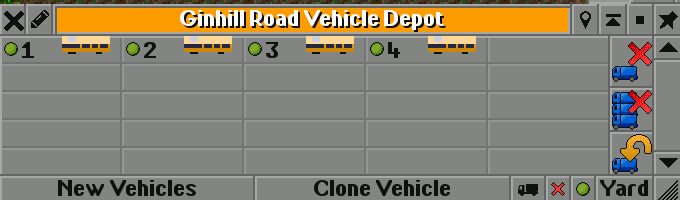
Because the four buses share their orders, they are one line: change the orders of one and all four follow.
7. Number and name the line
Section titled “7. Number and name the line”- On the main toolbar, click Road vehicles (the lorry icon; tooltip Open list of company’s road vehicles).
- At the top of the list, set Group by to Lines (shared orders). Your four buses now show as one row.
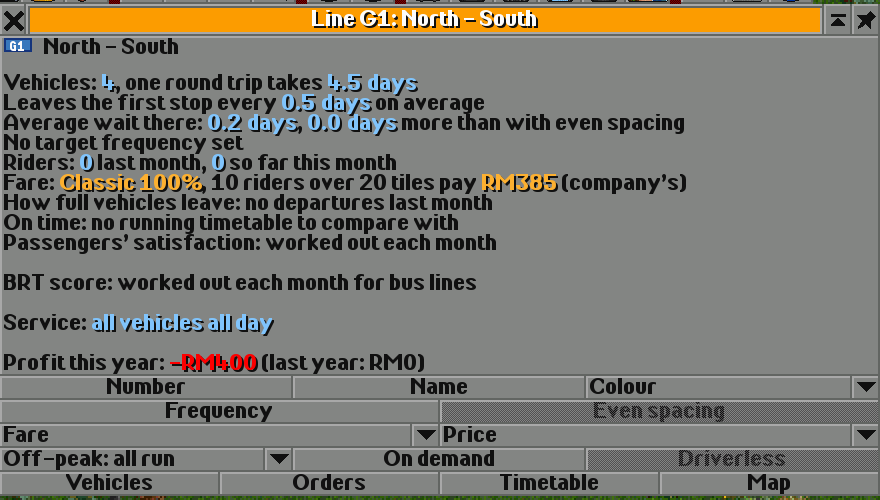
- Click that row. The line window opens.
- Click Number and type a short number, for example G1. Click Name and type a name, for example North - South.
8. Let it run, then look again
Section titled “8. Let it run, then look again”Let the game run for a month or two; the fast forward button on the main toolbar (next to pause; tooltip Fast forward the game) speeds it up. Then open the line window again from the vehicle list.
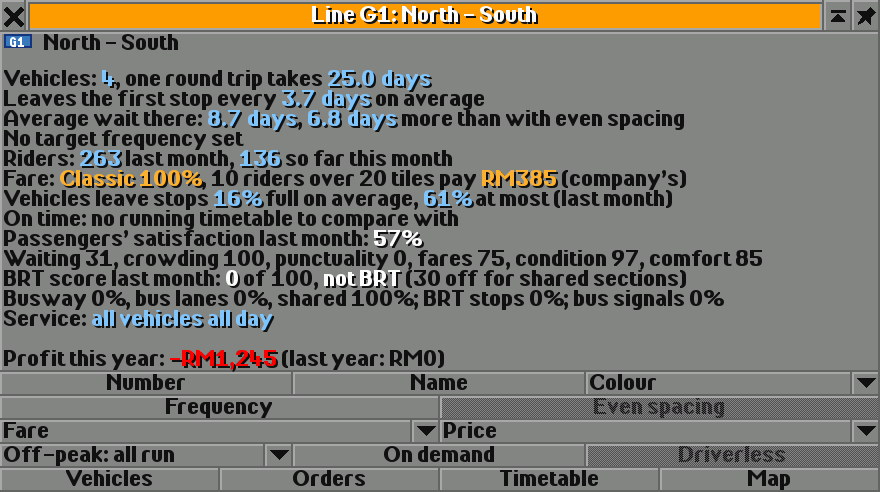
A round trip takes 25 days, so four evenly spaced buses would leave every six days or so, and riders would wait about three. Instead the buses run close together, the waits are long, and riders give the line 57%, with punctuality at 0 and waiting at 31 (see passenger satisfaction).
9. Space the buses evenly
Section titled “9. Space the buses evenly”- In the line window, click Frequency and type 7: the round trip divided by the number of buses (25 ÷ 4, about 6.25 days), rounded up. The window now says Target: every 7.0 days, which needs 4 vehicles.
- Close the line window and open it again from the vehicle list. (The Even spacing button only becomes clickable once the window is opened again.)
- Click Even spacing. The button shows as pressed the next time you open the window.
Now each bus waits at the first stop, loading passengers, until seven days have passed since the bus before it left. Over the next round trips the bunch breaks up.
10. Set fares
Section titled “10. Set fares”- On the main toolbar, click Finances (the money icon; tooltip Open company finances information), then Fares in the bottom row of the Finances window.
- In the Buses row, click Full fare under Concessions and choose Students, seniors and disabled riders (a fifth) pay half.
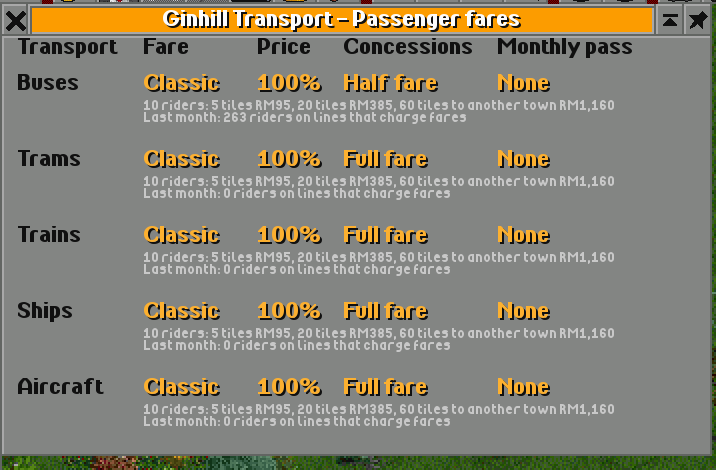
Half fares make riders rate your stops better. Ginhill also pays back concession fares (its Transit window says so, see step 12), so the town makes up the difference while its budget lasts. Before you give concessions in your own town, check its Transit window too. The other columns are explained under fares.
11. Check after a few months
Section titled “11. Check after a few months”Let the game run for about three months. Then look at the line again:
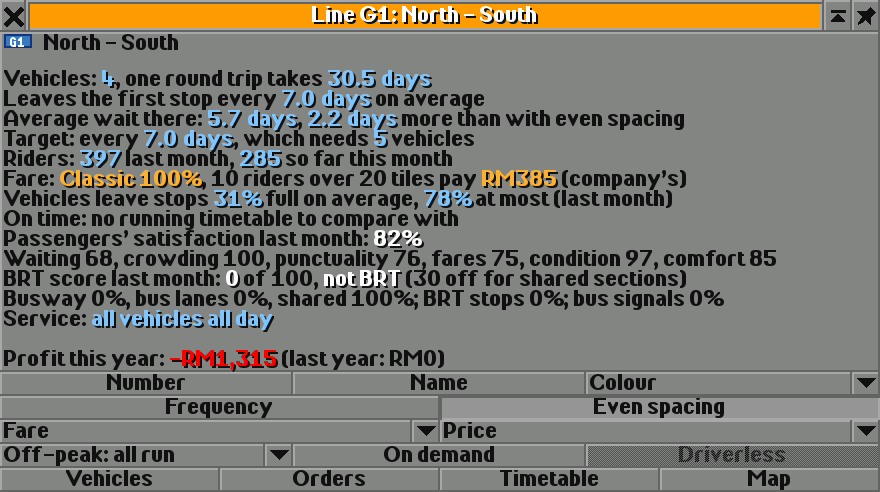
The round trip now includes the time the buses wait for their turn at the first stop, so the line says its target needs 5 vehicles. Four are enough here: without the waits a round trip takes 25 days, less than four times seven.
Open the station window of the centre stop (click its name sign) and click Departures:
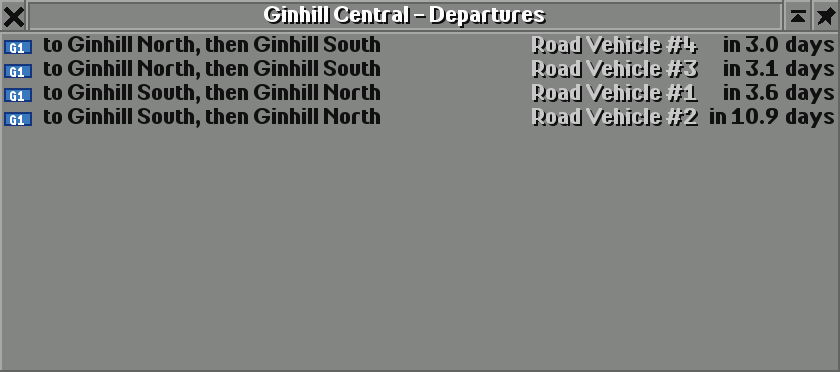
Click Ratings in the same station window: Riders from here paid 55% of the classic fare: passengers +23% (half fares, and the town’s resident pass) and Riders’ satisfaction with the lines here: 82%: passengers +2%.
12. See what the town thinks
Section titled “12. See what the town thinks”Click the town’s name in the main view. Its town window now says Happiness: 46% (riders’ satisfaction 82%): with the bunched buses it was 41% (57%). Click Transit in its bottom row:
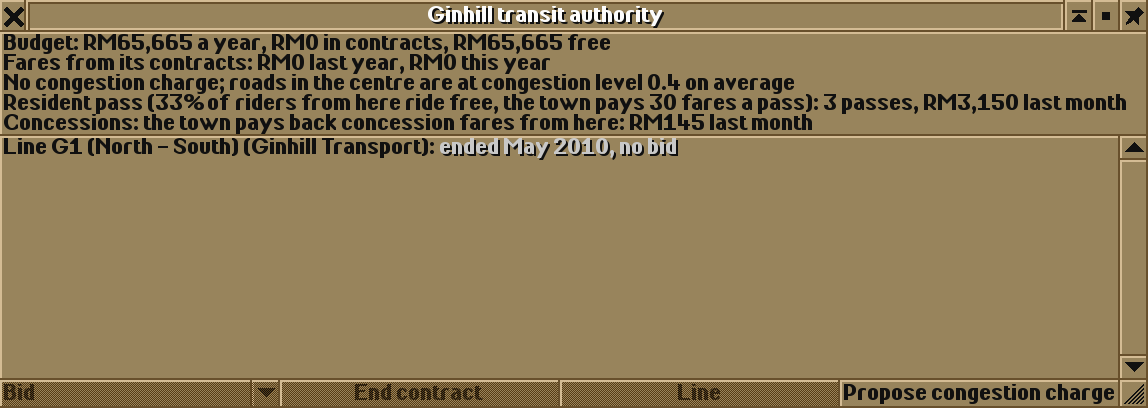
At the end of its first month in the game, Ginhill decided to give its residents a free pass and to pay back concession fares; your town may decide otherwise. It also invited tenders for line G1 in its second month. Nobody bid, so the line simply runs on as before. Next time, try a bid: the transit authorities page explains how.
Where next
Section titled “Where next”- Add a second line through the town, and give it a number: departure boards and line maps show where to change (see lines).
- Try electric buses with chargers in the depot yard or over the end stops (see modern and electric buses and depot yards).
- When town traffic slows your buses, paint bus lanes (see bus priority), and later build a BRT corridor.
- Bid for the town’s next tender (see transit authorities).
Wira Bandar PC is a fork of OpenTTD. It is OpenTTD's code with changes, not a game made from scratch. OpenTTD is made by the OpenTTD team and contributors and is free software under theGNU General Public License version 2; Wira Bandar PC keeps that licence, OpenTTD's credits and copyright notices.Source code ·OpenTTD ·About and credits
Wira Bandar PC is not made or supported by the OpenTTD team, so please don't report its bugs to OpenTTD (see FAQ and troubleshooting).